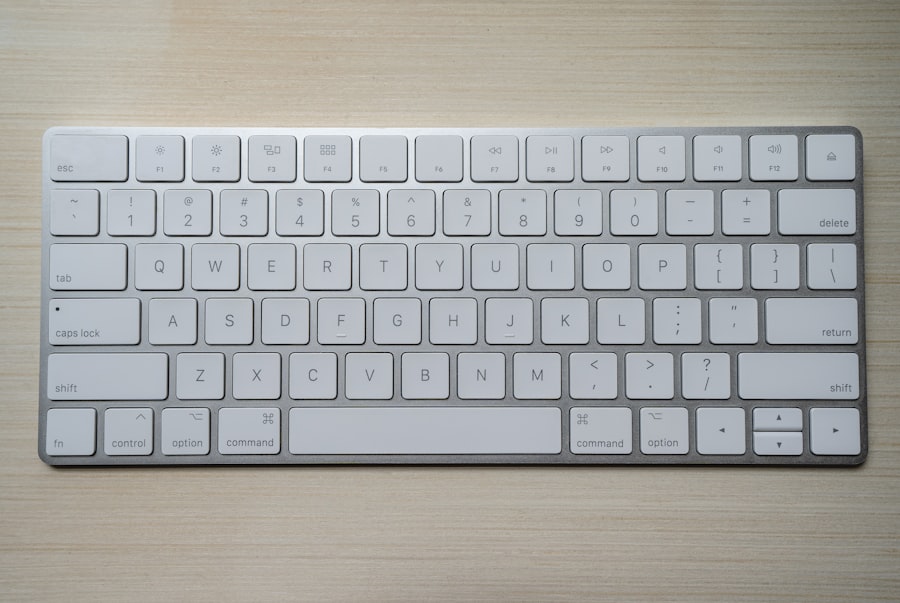
You can connect to a VNC remote Mac, but copy/paste feels wrong, IME state is confusing, and the right-click menu seems unreliable. Usually this is not broken hardware: it is Windows muscle memory meeting macOS semantics inside a remote session. This 2026 guide targets people using vncmac.com or similar from a Windows PC. You get pain-point analysis, a shortcut decision matrix, five concrete setup steps for input sources, secondary click, and clipboard behavior, plus a short self-check. If you have not finished first connection yet, read the first-time checklist article on this blog, then return here.
Why Windows users feel clumsy in VNC
Your physical keyboard shows a Windows key, but macOS expects Command and Option. Many viewers can map PC Ctrl to Command; others leave defaults unchanged. Then Ctrl+C in a terminal may send SIGINT instead of copy, which feels like a bug. Input method state lives on the remote Mac: the remote menu bar may show Pinyin while your local taskbar shows US English. Without that mental model, users blame latency or the provider.
macOS also prefers Control+click or two-finger tap for context menus. A single right-click only works predictably when secondary click is enabled. Over VNC, understanding viewer settings plus macOS trackpad/mouse prefs removes most friction without buying new hardware.
Pain points: modifiers, focus, viewer options
- Modifier mismatch: Undo, copy, paste, close tab use Command on macOS and Ctrl on Windows by default.
- Focus ownership: When the remote window has focus, macOS interprets shortcuts. Alt+Tab on the local OS switches local apps and the remote session stops receiving keys.
- Terminal semantics:
Ctrl+Coften means interrupt, not clipboard copy. - IME split: Remote and local each have their own input stack; switch IME inside the session.
- Clipboard redirection: Large images or rich text may lag; prefer files for huge payloads.
Decision matrix: common actions on remote macOS
| Goal | Typical macOS | Windows habit translation |
|---|---|---|
| Copy | Command+C | If mapped, Ctrl+C; otherwise send Command via viewer menu |
| Paste | Command+V | Same pattern; watch terminal focus |
| Undo | Command+Z | Same role as Ctrl+Z with Command as primary |
| Save | Command+S | Works in Xcode and editors |
| App switcher | Command+Tab | Analogous to Alt+Tab with different key |
| Context menu | Control+click or two-finger tap | Enable secondary click for mouse users |
| IME switch | Control+Space or custom | Check Keyboard settings on the Mac |
RealVNC, TigerVNC, and built-in viewers name options differently, but the rule is constant: verify which modifier the remote session receives, then document the mapping for your team. Shared nodes benefit from a single screenshot of recommended viewer settings in your internal wiki.
Five steps: IME, right-click, clipboard
Add input sources on the remote Mac
System Settings, Keyboard, Input Sources. Add what you need and remove unused sources to reduce accidental switches.
Tune viewer key mapping
Enable Treat Ctrl as Command or equivalent so Xcode and browsers match your habits.
Configure secondary click
Mouse or Trackpad settings: enable right-click or Control+left for one-button mice.
Test clipboard both directions
Copy inside Safari to Notes on the Mac; then copy from a local editor into the remote session if supported.
Dry-run Xcode
Create a tiny project: save, build shortcuts, simulator home if applicable. Write down combinations that still feel wrong.
Maintain two cheat sheets if you mix graphical VNC with plain SSH: graphical workflows favor Command; SSH shells treat Ctrl+C carefully. For collaboration screenshots, standardize on one macOS capture shortcut or one third-party tool so documentation stays consistent.
Reference facts
- Remote menu bar shows the active input source icon
- Chinese and English switch cleanly in TextEdit
- Control+click works in Finder
- Viewer clipboard options match your security policy
FAQ and related posts
First connection and black screen: see the first-time VNC remote Mac checklist. Mbps and latency: dedicated bandwidth article. Blurry UI: image quality guide. Emergency TestFlight: hotfix checklist.
Closing: mapping fixes habits; a stable remote Mac saves time
Running macOS in a local VM or dual-boot costs disk, drivers, and battery, and it still differs from an always-on cloud Mac you reach in seconds. Plain SSH cannot comfortably tune IME, mouse acceleration, or System Settings dialogs. VNC shows the real desktop; once shortcuts and secondary click are aligned, productivity approaches a physical Mac on your desk. If you do not want to buy hardware for short projects, renting a VNC remote Mac (such as VNCMac) plus the help center connection docs and these checklist articles is usually the lowest-friction path.