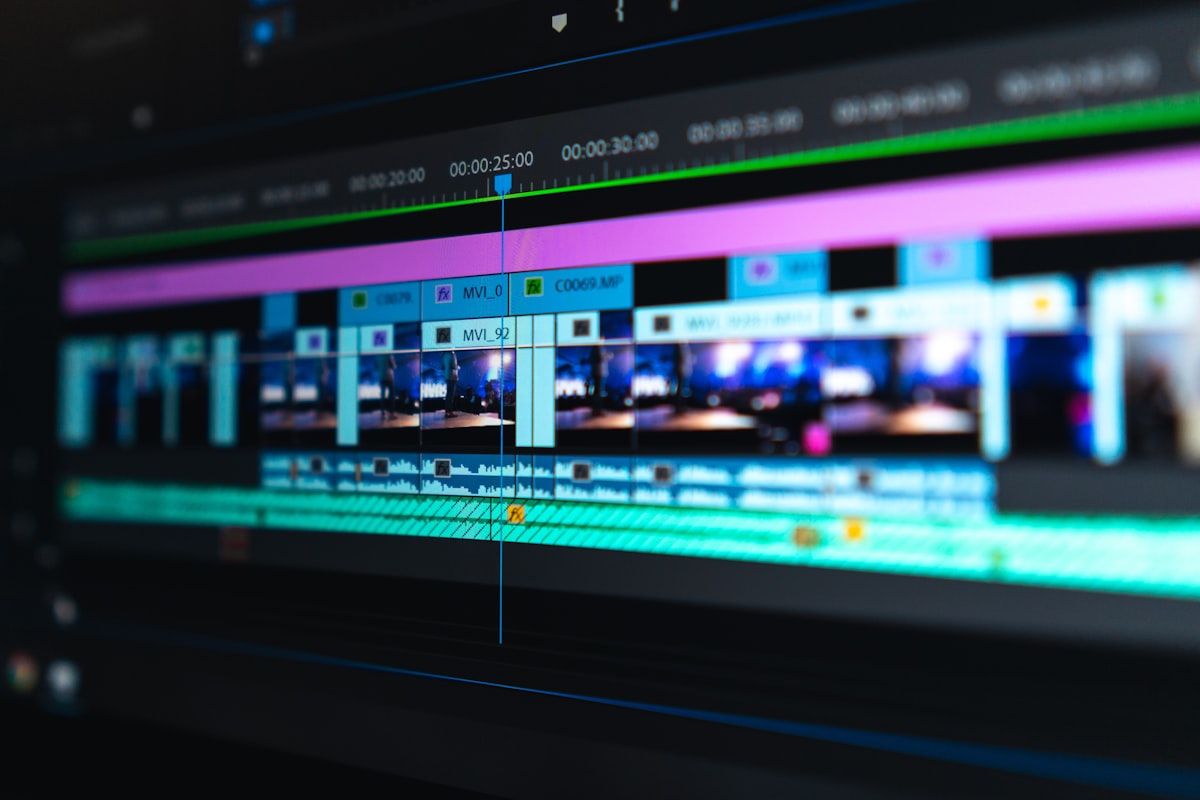
Video editors no longer need a tower workstation under their desk. The Apple Silicon M4 chip packs a dedicated Media Engine, a 10-core GPU with hardware ray tracing, and unified memory into a chassis that fits in one hand. When that hardware sits in a datacenter and you connect to it remotely, the economics of professional video production change fundamentally. This article breaks down the architecture, the benchmarks, and the real-world workflows that make a remote Mac mini a serious post-production tool.
The Media Engine: Why Apple Silicon is Structurally Different
Most discussions about GPU video performance focus on raw TFLOPS. Apple Silicon shifts the conversation. Alongside the standard GPU cores, every M4 chip contains a fixed-function Media Engine with three independent hardware blocks: a video decode engine, a video encode engine, and a dedicated ProRes engine. These blocks operate outside the GPU pipeline entirely. They process video codec operations in silicon, not in shader code.
This architecture means that encoding a ProRes timeline does not compete with GPU resources needed for color grading, noise reduction, or compositing. The CPU, GPU, and Media Engine can all operate simultaneously on different stages of the same frame. In a traditional x86 workstation, GPU-based encoding (via NVENC, for example) shares resources with CUDA cores. Apple's approach eliminates that contention by design.
M4 Media Engine: Supported Codecs
- H.264: Hardware encode and decode
- HEVC (H.265): Hardware encode and decode, including 10-bit HDR
- ProRes: Dedicated encode and decode engine (ProRes 422, 422 HQ, 4444, 4444 XQ)
- ProRes RAW: Hardware decode for native camera RAW workflows
- AV1: Hardware decode (encode not hardware-accelerated)
The practical impact is measurable. When you export a 10-minute 4K ProRes 422 HQ timeline in Final Cut Pro on an M4 Mac mini, the Media Engine handles ProRes encoding at near-real-time speed while the GPU remains free for any remaining effects rendering. On competing hardware, that same export would load the GPU for both effects and encoding, roughly doubling the wall-clock time.
GPU Architecture: 10 Cores, Dynamic Caching, and Ray Tracing
The M4's 10-core GPU introduces Dynamic Caching, a hardware-level mechanism that allocates local memory to shader workgroups in real time. Traditional GPUs assign a fixed memory budget to each workgroup at compile time. If a shader uses less than allocated, the excess is wasted. Dynamic Caching reclaims unused memory and redistributes it, pushing average GPU utilization significantly higher under mixed workloads.
For video editors, this matters most during effects-heavy timelines. Color grading with LUTs, applying optical flow retiming, and running noise reduction simultaneously creates a mixed workload with very different memory footprints per shader. Dynamic Caching ensures the GPU spends less time idle waiting for memory allocation and more time executing compute work.
The M4 also adds hardware-accelerated ray tracing and mesh shading. While these features are primarily associated with 3D rendering, they directly benefit motion graphics workflows in tools like Apple Motion, DaVinci Resolve Fusion, and After Effects. Ray-traced reflections and refractions that previously required minutes of CPU baking can now render in near real-time during preview.
Real-World Benchmarks: M4 vs. Previous Generations
Raw specifications only tell part of the story. The following benchmarks, drawn from independent testing with PugetBench and real-world export measurements, quantify the M4's advantage in professional NLE applications.
DaVinci Resolve 19.1 (PugetBench)
- M4 (10-core GPU): 4K H.264 at ~57-59 fps, DNxHR encoding at ~149-173 fps
- M4 Pro (16-core GPU): 4K HEVC at higher sustained throughput, ~1.7x GPU effects performance over base M4
- M4 Max (32-core GPU): Overall PugetBench score of 9,439; 4K H.264 at 290 fps; Fusion effects at 102 fps
- Comparison: M4 Max approaches M1 Ultra (64-core GPU, score 9,574) while consuming a fraction of the power
Final Cut Pro 11
- 4K ProRes 422 HQ multicam: 10-15 simultaneous streams on M4, with storage as the primary bottleneck
- 8K ProRes rendering: Real-time playback on M4 Pro and above
- Export speed: A complex 10-min 4K timeline exports in approximately 12 minutes on M4 Pro (vs. 45+ minutes on Intel i7)
Adobe Premiere Pro 25
- M4 base: Overall PugetBench score of 3,764; H.264 encoding at 30.49 fps; ProRes 422 Proxy at 91.90 fps
- GPU Effects: Mercury Playback Engine leverages Metal API, providing smooth timeline scrubbing with Lumetri Color and Warp Stabilizer active
"The M4 Mac mini delivers speed increases between 10x and 25x over comparable Intel systems in DaVinci Resolve, with some tasks showing 92x faster performance. Storage speed, not GPU power, is now the primary bottleneck." -- Larry Jordan, independent NLE testing
Unified Memory Architecture: Why VRAM Limits Do Not Apply
Traditional GPU workstations force video editors to think carefully about VRAM. A 12GB NVIDIA RTX 4070 can run out of GPU memory when stacking multiple OpenFX plugins on a 4K timeline, causing render failures or cache spilling to system RAM over PCIe. Apple Silicon eliminates this constraint entirely.
The Unified Memory Architecture (UMA) gives the CPU, GPU, Media Engine, and Neural Engine access to the same physical memory pool with zero-copy access. An M4 Mac mini with 24GB of unified memory provides the GPU with access to the full 24GB, not a carved-out subset. Memory bandwidth reaches 120 GB/s on the base M4 and 273 GB/s on M4 Pro.
For video workflows, this means large timeline caches, decoded RAW frames, and ML-based effects (like DaVinci Resolve's Magic Mask) can coexist without memory pressure. The GPU reads decoded frames directly from the same memory region the Media Engine wrote to, with no bus transfer overhead. This zero-copy pipeline is architecturally impossible on discrete GPU systems where data must traverse PCIe lanes.
Remote Workflow Architecture: Connecting to Your Cloud Mac mini
Running a Mac mini in a datacenter requires careful attention to display handling, remote access latency, and storage topology. Here is the reference architecture that VNCMac customers use for professional video editing.
Display and Headless Configuration
Mac mini systems require a display (or display emulator) to enable GPU acceleration for remote sessions. Without a connected display, macOS disables hardware compositing, which degrades performance in video applications. VNCMac instances ship with HDMI display emulators pre-configured, ensuring full GPU acceleration is available from the first connection.
Remote Access Protocols
Standard VNC provides functional remote access but introduces visible compression artifacts and latency that are unacceptable for color-critical work. Professional video editors on VNCMac typically use one of the following approaches:
- Parsec: Sub-5ms latency with hardware-accelerated H.265 streaming, color-accurate output, 4K 60fps support
- Apple Remote Desktop (ARD): High-performance screen sharing mode with adaptive quality; best for LAN-speed connections
- SSH + Headless Render: For batch rendering workflows, submit render jobs over SSH and download finished files; no display protocol overhead
$ ssh user@your-vncmac-instance
$ /opt/resolve/bin/resolve -nogui -renderProject "MyProject" -renderTimeline "Final Cut" -renderCodec "ProRes422HQ"
Render started: Timeline "Final Cut" (4K, ProRes 422 HQ)
Progress: 100% | Elapsed: 00:11:42 | Avg FPS: 58.3
Render complete. Output: /Volumes/Media/exports/FinalCut_ProRes422HQ.mov
# Download the finished render
$ rsync -avz --progress user@your-vncmac-instance:/Volumes/Media/exports/ ./local-exports/
Storage Topology
Storage speed determines whether the GPU starves for data. The M4 Mac mini's internal NVMe SSD delivers sequential read speeds above 3 GB/s, which comfortably feeds multi-stream 4K ProRes playback. For projects with large media libraries, VNCMac instances can attach high-speed NAS volumes over 10GbE, providing sustained throughput of 1.0-1.2 GB/s across the network.
The recommended storage layout for a remote editing workflow:
- Internal SSD: Operating system, applications, DaVinci Resolve cache, and active project databases
- Network Storage (10GbE NAS): Source media, proxy files, rendered outputs, and archive
- Local Machine: Final deliverables downloaded via rsync or SFTP after export completes
DaVinci Resolve: Distributed Rendering on Remote Mac Instances
DaVinci Resolve Studio (paid version) supports distributed remote rendering across multiple machines on the same network. This feature turns idle Mac mini instances into a render farm. A primary editing workstation sends render jobs to secondary machines via the Delivery page's network render option. Each node processes assigned frames independently, and the results are assembled automatically.
In a VNCMac environment, this means you can rent two or three M4 Mac mini instances, link them through DaVinci Resolve's built-in collaboration infrastructure, and distribute a complex 30-minute 4K export across all nodes. Each M4's Media Engine encodes its assigned segments in parallel, reducing total export time by a factor roughly proportional to the number of nodes.
Blackmagic Cloud Collaboration
DaVinci Resolve 18+ introduced Blackmagic Cloud for real-time multi-user collaboration. Editors, colorists, and audio engineers can work on the same project simultaneously from different locations. The system uses automatic timeline locking to prevent overwrites. When combined with VNCMac instances, each team member gets a dedicated M4 machine with full GPU acceleration rather than sharing a single workstation.
The collaboration workflow requires consistent media paths across all machines. Proxy files stored in shared cloud storage (Dropbox, Google Drive, or dedicated NAS) enable bandwidth-efficient editing, while the colorist works with full-resolution masters on a higher-spec instance. Path Mapping in DaVinci Resolve's Project Settings ensures media relinks automatically when project files are opened on different nodes.
Final Cut Pro 11: Metal API and Background Rendering
Final Cut Pro 11 is the most optimized NLE for Apple Silicon hardware. It uses the Metal API exclusively for GPU compute, bypassing OpenCL entirely. Background rendering in Final Cut Pro leverages both the GPU and the Media Engine simultaneously. This means the timeline remains responsive while exports process in the background.
On a remote Mac mini, Final Cut Pro's Compressor integration adds additional flexibility. Compressor can queue multiple export jobs with different output formats (H.265 for web, ProRes for archive, HEVC for HDR delivery) and process them sequentially using hardware acceleration. The Mac mini's 3-watt idle power consumption makes it economically viable to leave render queues running overnight without significant energy cost.
Cost Analysis: Cloud Mac mini vs. Local Workstation
A properly configured local video editing workstation in 2026 requires significant capital outlay. Consider the comparison:
Local Workstation (One-Time Purchase)
- M4 Pro Mac mini (24-core GPU, 48GB, 1TB): $1,999
- External storage (4TB Thunderbolt SSD array): $600-$1,200
- Reference monitor (4K HDR): $800-$3,000
- UPS, networking, desk space: $200-$500
- Total: $3,600-$6,700 upfront, plus maintenance and depreciation
VNCMac Cloud Instance (Pay-As-You-Go)
- No upfront hardware cost: Eliminate capital expenditure entirely
- Hourly billing: Pay only for active editing and rendering hours
- Scalable: Spin up additional instances during deadline crunches, shut them down afterward
- No maintenance: Hardware failures, macOS updates, and infrastructure management handled by VNCMac
- Access from anywhere: Edit from a Windows laptop, a Chromebook, or an iPad with a keyboard
For freelance editors working on 2-3 projects per month, the cloud model typically costs 40-60% less than owning equivalent hardware over a 3-year lifecycle when factoring in depreciation, insurance, and downtime.
Practical Workflow: From Ingest to Final Delivery
Here is a step-by-step walkthrough of a professional editing workflow on a VNCMac remote Mac mini:
- Step 1 -- Media Upload: Upload camera footage to the Mac mini's network storage via SFTP or rsync. 10GbE connections handle 100GB of 4K ProRes in under 2 minutes from a co-located NAS.
- Step 2 -- Proxy Generation: Generate optimized proxy files (ProRes Proxy or H.264) using Compressor or DaVinci Resolve's built-in proxy workflow. The Media Engine processes proxy generation at faster-than-real-time speed.
- Step 3 -- Offline Edit: Connect via Parsec or ARD. Edit using proxies for responsive timeline performance. The low-bandwidth proxy stream keeps remote latency imperceptible.
- Step 4 -- Online Conform: Relink to full-resolution masters. Apply color grading, effects, and audio finishing with GPU acceleration.
- Step 5 -- Export: Queue exports via Compressor or submit headless render jobs over SSH. The Media Engine handles ProRes and HEVC encoding while you continue editing another project.
- Step 6 -- Delivery: Download finished files or push directly to cloud delivery platforms (Frame.io, Vimeo, YouTube) from the Mac mini's datacenter-grade network connection.
When Does a Remote Mac mini Make Sense?
A remote Mac mini is not the right choice for every editor. It excels in specific scenarios:
- Distributed teams: Multiple editors, colorists, and producers who need access to the same project infrastructure without shipping drives
- Freelancers without capital: Professional-grade hardware without the $3,000+ upfront investment
- Batch rendering: Overnight render queues that would tie up a local workstation you need for other tasks
- Cross-platform teams: Windows and Linux editors who need macOS for Final Cut Pro or Apple-specific codec support
- Burst capacity: Spin up 3-5 render nodes for a deadline, scale back to one instance after delivery
Conclusion
The Apple Silicon M4 Media Engine, combined with a power-efficient 10-core GPU and unified memory architecture, makes the Mac mini a legitimate post-production workhorse. When that hardware is deployed in a datacenter and accessed remotely, it removes the last barriers between professional video editing and geographic flexibility.
The benchmarks are clear: M4 hardware delivers 10-25x performance improvements over Intel-based predecessors in DaVinci Resolve, real-time 8K ProRes playback, and sub-12-minute exports for complex 4K timelines. The dedicated Media Engine ensures that encoding never competes with GPU effects processing. And the unified memory architecture eliminates the VRAM ceiling that plagues discrete GPU workstations.
At VNCMac, we provide dedicated Apple Silicon M4 Mac mini instances with pre-configured display emulators, high-speed network storage, and 24/7 infrastructure support. Whether you are cutting a feature documentary, grading a commercial campaign, or rendering motion graphics for broadcast, a cloud Mac mini gives you the performance you need without the overhead you do not.