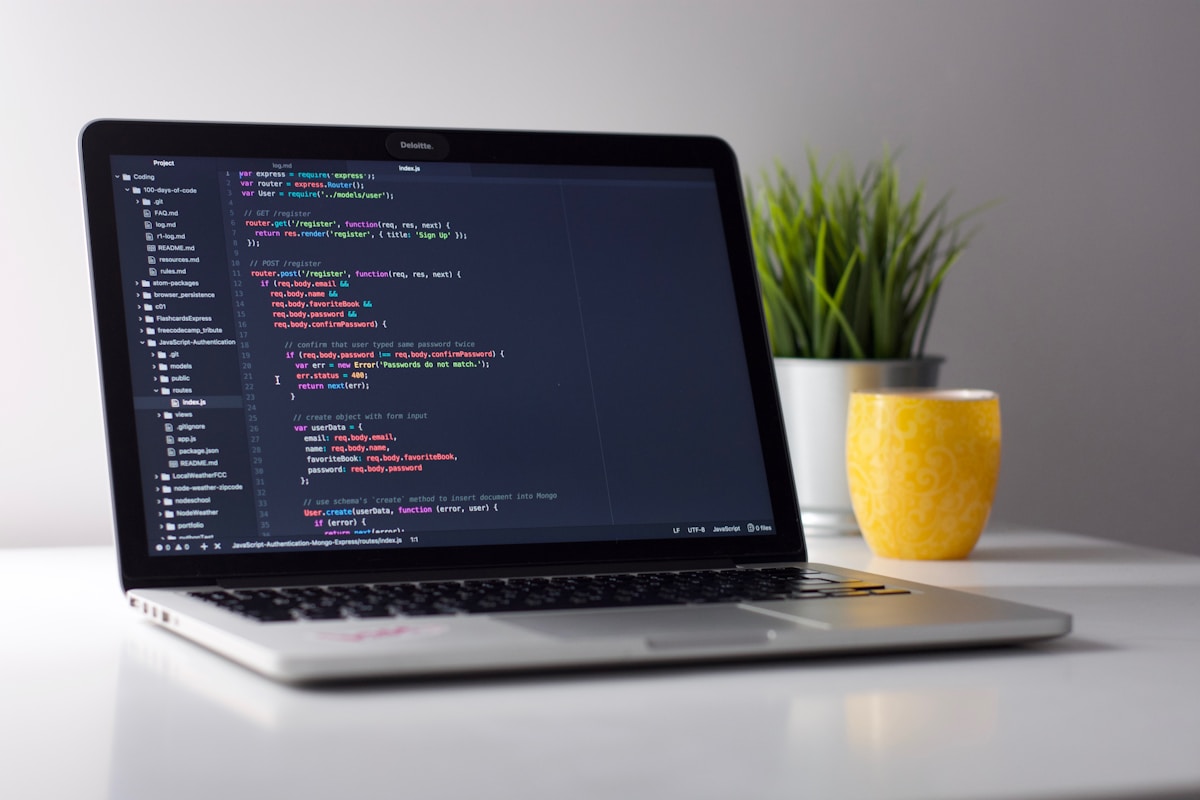
You want to build iOS apps in 2026 but do not want to buy a Mac. That constraint used to mean a dead end. Today it does not. Remote Macs—real Apple Silicon machines you rent and connect to over the internet—give you a full Xcode environment without owning hardware. This guide is the shortcut: how to go from zero to building and shipping iOS apps using a cloud Mac, and why that path is now the norm for beginners and bootstrapped teams.
Why “No Hardware” Is a Valid Starting Point
A new Mac mini or MacBook is a four‑figure purchase. For students, career switchers, or teams testing iOS as a second platform, that cost is a real barrier. Surveys show that a majority of developers already use non-local or cloud environments as their primary setup; for iOS, “non-local” means a Mac you access remotely instead of one on your desk. The toolchain is unchanged: you still run Xcode, Swift, and the Simulator. The only difference is where the Mac lives and who owns it.
From a learning perspective, that difference is an advantage. You get a clean, consistent macOS and Xcode instance. You avoid the “which Mac should I buy?” question and the risk of under‑speccing or overpaying. You can start in an hour, not after saving for months.
The Shortcut in Three Steps
To start iOS development without buying hardware, you need (1) access to a Mac that runs macOS and Xcode, (2) a way to use it from your current machine, and (3) a path to run and archive builds. A rented cloud Mac plus VNC covers all three.
Step 1: Get a remote Mac
Use a provider that gives you a dedicated Mac (Mac mini or similar) by the month or hour. “Dedicated” means the machine is yours for the rental period—no shared CI queues or minute limits for learning. You want macOS, admin access, and a static or predictable IP or hostname so you can connect reliably.
- Specs that matter for beginners: Apple Silicon (M2 or M4), 8 GB RAM minimum, 256 GB storage. Enough for Xcode, Simulator, and a few projects.
- Cost context: Monthly rental is typically a fraction of a Mac mini’s purchase price. You can run for months before the total cost approaches hardware ownership, and you can stop or change plans without selling gear.
Step 2: Connect with VNC
VNC lets you see and control the Mac’s desktop from Windows, Linux, or another Mac. You open a VNC client, enter the host and port from your provider, and you get a full graphical session: menubar, Dock, Finder, Xcode. No “terminal-only” limitation. You use the remote Mac exactly like a physical one, only over the network.
- Typical workflow: Start the VNC client, connect to your cloud Mac, launch Xcode, create or open a project, write Swift, run in Simulator or on a device (if you plug one in via USB over the network where supported). Build, test, iterate.
- Performance: For UI work and Simulator, a solid home or office connection is enough. Latency matters more for typing and dragging than for compilation; builds run on the Mac, not over the wire.
Step 3: Learn and ship
With a remote Mac and VNC, your path is the same as for someone with a local Mac: install Xcode from the App Store (or your provider’s image), follow Apple’s Swift and UIKit or SwiftUI tutorials, run in Simulator, then add signing and archive when you are ready for TestFlight or the App Store. The only extra skill is “remember I am on a remote desktop”—everything else is standard iOS development.
The shortcut is not a different curriculum. It is the same iOS path—Xcode, Swift, Simulator, signing, App Store—delivered on a Mac you rent instead of buy. That shift in ownership is what makes “from zero without hardware” possible in 2026.
How This Compares to “Buy a Mac”
A brief comparison makes the trade-offs clear. If you buy a Mac mini (or laptop), you pay upfront, own the machine, and never depend on a provider. You also take on setup, upgrades, and the risk that your needs outgrow the machine. If you rent a cloud Mac, you pay over time, get a ready-to-use environment in minutes, and can resize or cancel when your situation changes. For a beginner, “try for a few months” is often better than “commit for years.”
- Upfront cost: Hardware purchase is $599–$1,500+ for a Mac mini or more for a laptop. Cloud Mac entry is typically tens to low hundreds per month.
- Time to first build: Ordering and receiving a Mac takes days or weeks. A cloud Mac is usable as soon as the provider provisions it and you have VNC credentials.
- Flexibility: With your own Mac, you are locked to that machine until you sell. With a rented Mac, you can switch plans, pause, or stop without disposing of hardware.
Technical Reality: Same Stack, Same Outcomes
Remote Macs run real macOS on real Apple Silicon. Xcode, the iOS Simulator, and the App Store toolchain behave identically to a physical Mac. Benchmarks and build times you see in tutorials or forums apply. There is no “cloud edition” of Swift or a stripped-down Xcode; you get the same binaries and the same workflow. The only variable is network latency between your input and the Mac’s display, which for learning and most development work is negligible with a decent connection.
What You Can Do From Day One
On a cloud Mac you can do everything a beginner needs:
- Install and run Xcode from the Mac App Store, same as on a local machine.
- Use the iOS Simulator for iPhone and iPad. Simulator runs on the remote Mac; you see the window over VNC. No extra setup.
- Write Swift and SwiftUI, use Git, read Apple’s docs and sample code. Your first “Hello, World” and first multi-screen app are the same as in any Xcode tutorial.
- Add code signing and archiving when you are ready for TestFlight or the App Store. Apple’s requirements do not change because the Mac is remote.
As you advance, you can attach a physical device (where the provider supports it), or run a CI agent like GitLab Runner on the same Mac for automated builds. None of that requires you to own the hardware. The one thing you must accept is dependence on the provider and your network. Choose a provider with clear uptime and support, and use a stable connection. For most learners and small teams, that is a reasonable trade for avoiding hardware cost and commitment.
First Weeks: A Practical Sequence
A realistic sequence for a beginner: Week 1, pick a cloud Mac provider and get VNC access; install Xcode and run Apple’s “Create your first app” tutorial in Simulator. Week 2–3, follow a structured Swift or SwiftUI course (e.g. Apple’s free documentation or a reputable video series), building small projects and running them on Simulator. By week 4–6, you can add an Apple Developer account, code signing, and a first TestFlight build. None of these steps assume you own a Mac. The only prerequisite is a computer and internet connection to reach the remote Mac.
Objections like “I have never used a Mac” or “Won’t latency be bad?” are common. For the first: macOS is learnable in a few hours of use, and most iOS tutorials assume little or no Mac background. For the second: compilation and Simulator run on the remote Mac; you only stream the screen. Typing and clicking may feel a few tens of milliseconds slower than local, but for learning and most development that is acceptable. If you later move to a physical Mac, your skills and projects transfer unchanged.
Bottom Line
In 2026, starting iOS development without buying hardware is a standard option. Rent a dedicated Mac, connect with VNC, and use it like a Mac on your desk. Same Xcode, same Swift, same path to the App Store—only the machine is remote and rented instead of owned. For beginners who want to start quickly and keep options open, that shortcut is often the most practical way in.